See which queue needs you, right now.
Wallboards, the team view, and agent rankings update as work moves, so you spot trouble while there's still time to fix it.
Put it on the wall, in its own window, or on your phone.
100+ countries · Cloud, hybrid, or onsite · 1 to 1,000 seats
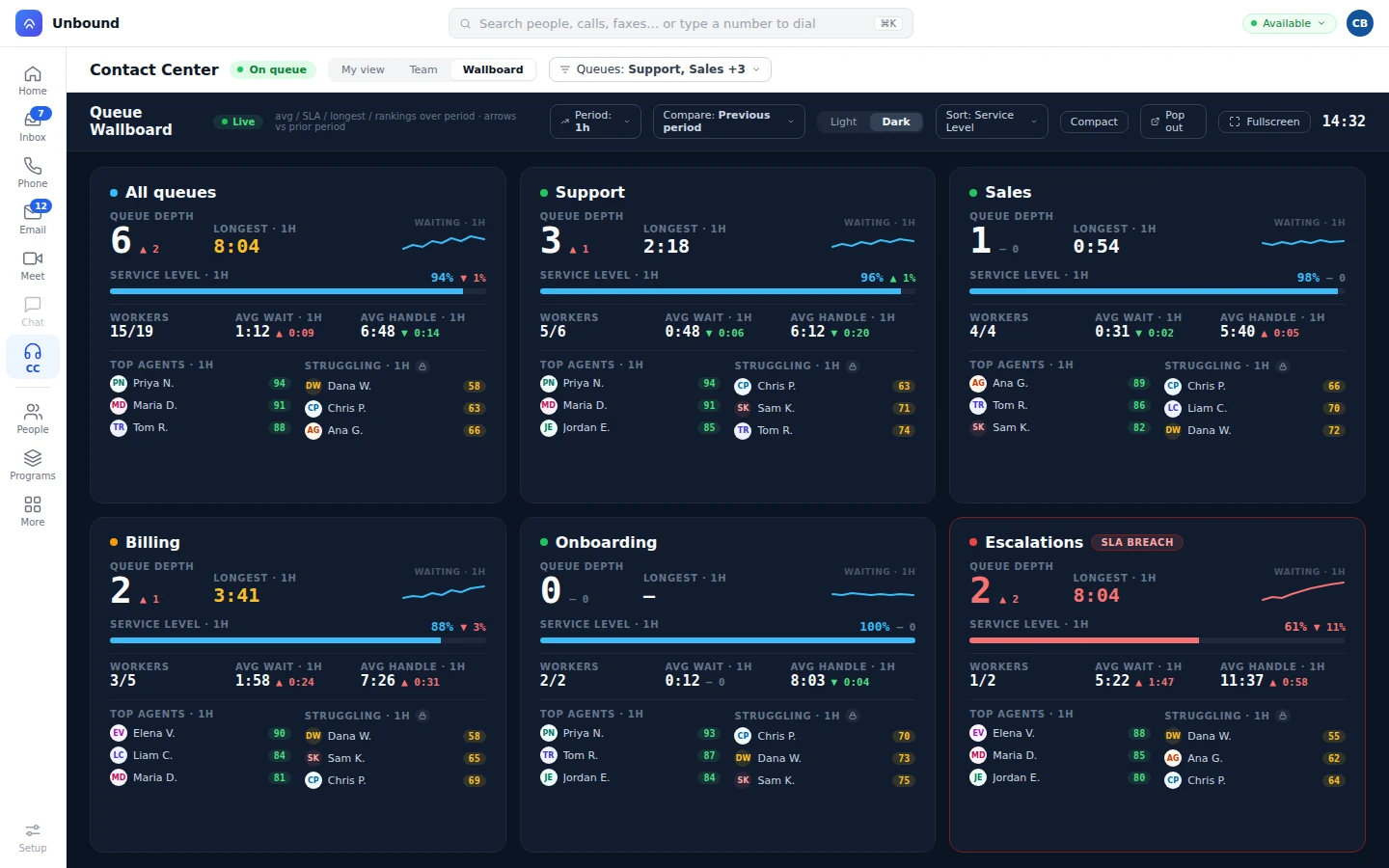
The queues you pick, on one board, against last period.
Choose the queues and the period you care about, and compare it with the one before.
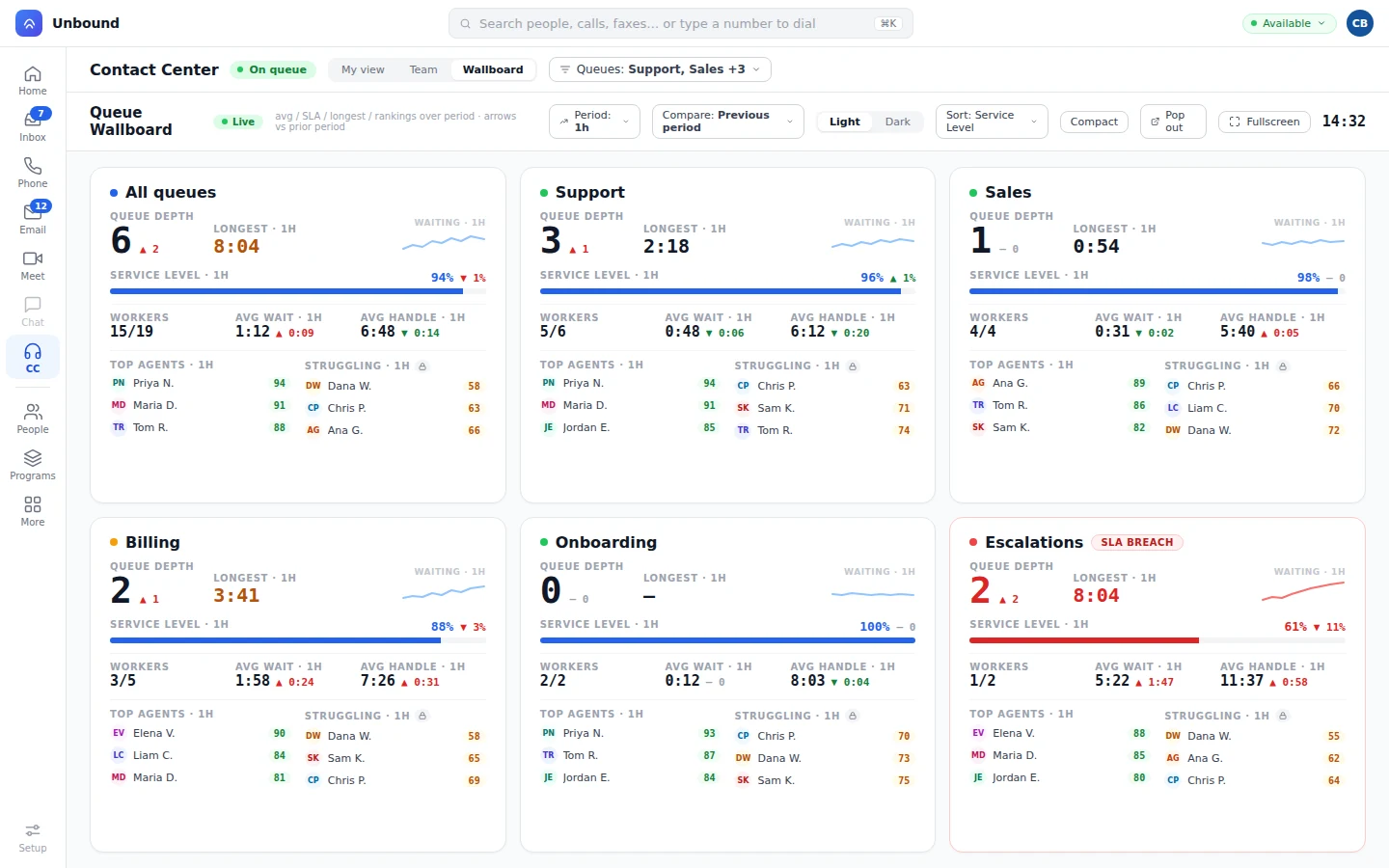
- Depth, wait, and service level.
Queue by queue: depth, longest wait, average wait, and service level.
- Against the prior period.
An arrow on each number shows whether it's up or down.
- Handle time and people.
Average handle time and how many people are on each queue.
- On the wall or on your desk.
Run it full screen on a TV, or keep it open beside your work, in light or dark.
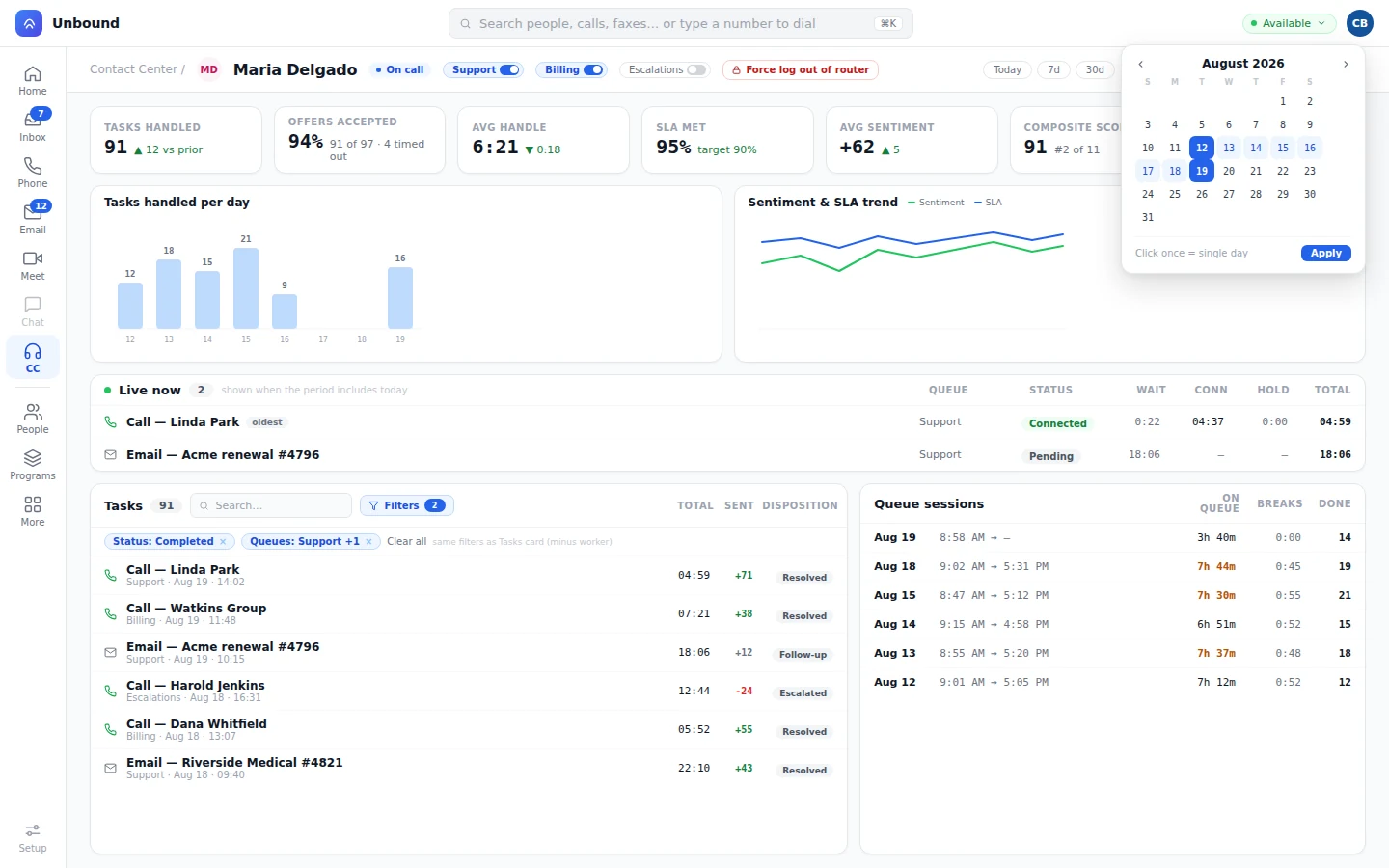
Who's carrying the queue, and who needs help.
Rankings for the period you pick, queue by queue, with names attached.
- Top agents by queue. The people doing the most for each queue this period.
- Who needs help today. Struggling agents by name, so coaching starts this shift, not next month.
- Coach from the conversation. Open the task to see the transcript and the playbook score behind the number.
Who's on task, in wrap-up, or on break.
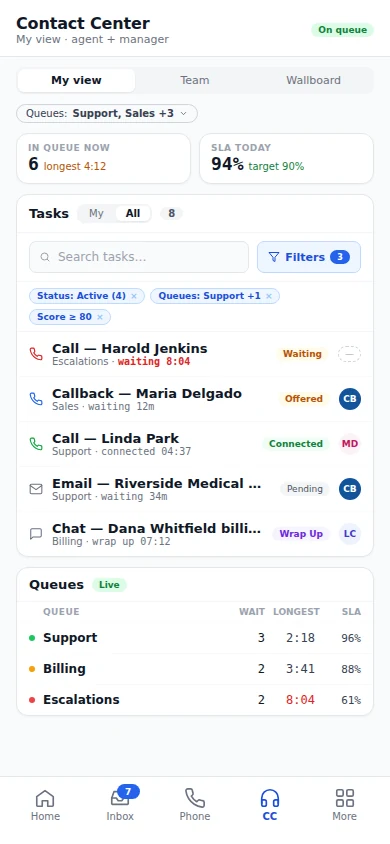
Managers see everyone on shift with their status, their time on queue, and the task they're working. Breaks show how long they've run.
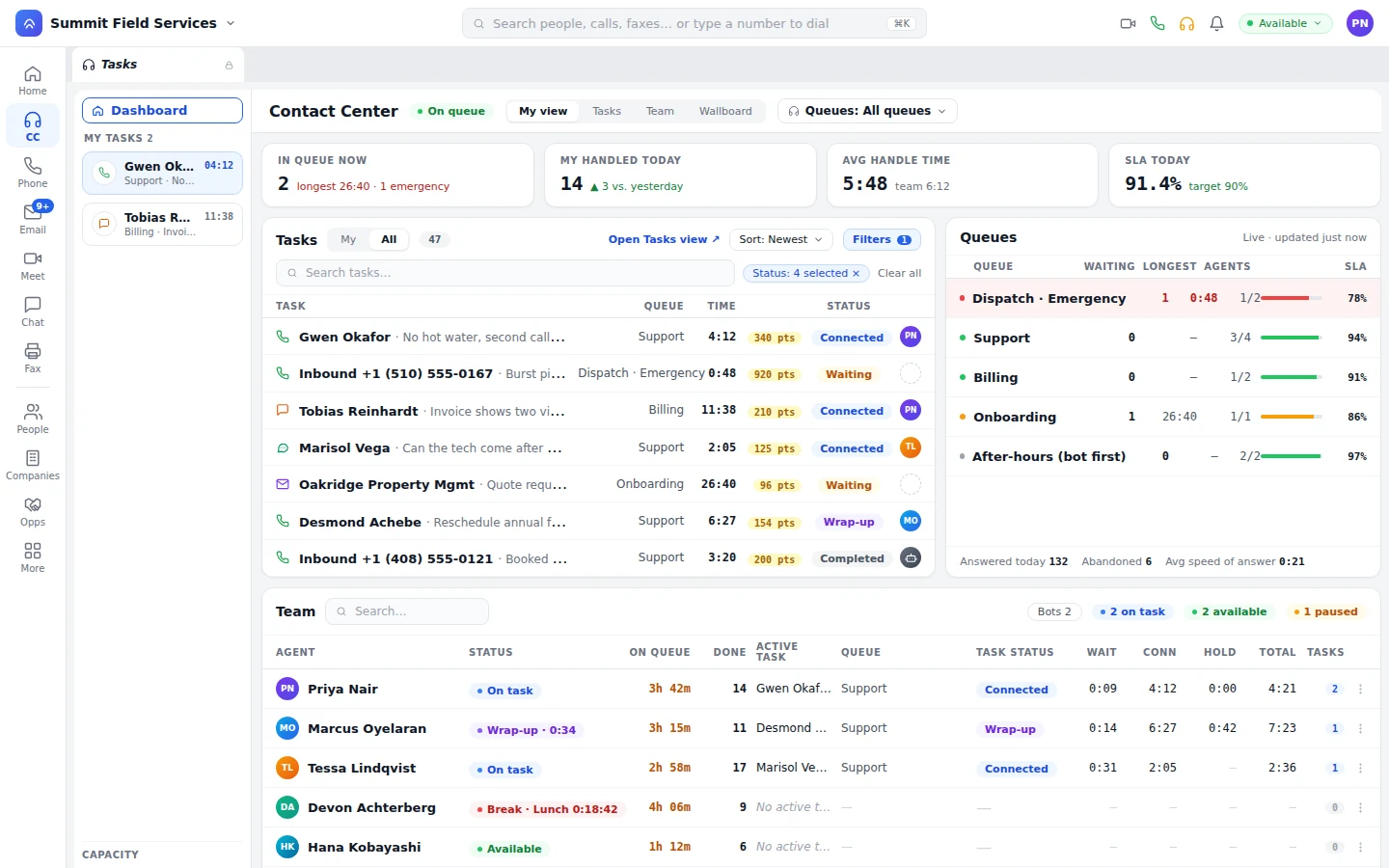
Bots get their own rows on the team view and wallboard, with status, handle time, and tasks done. When bots cover the night queue, the morning board shows how much they handled. How bots work
Alerts where managers are. Reports when they ask.
Queues, the team view, and the wallboard run on iPhone and Android, so a manager off the floor still sees the board.
- Alerts. A workflow pings you in team chat, by text, or by email when something needs attention.
- Step in. Listen to a live conversation, or join when the agent asks for help.
- Reports. Standard contact center reports cover the day to day.
- Query builder. Write a UOQL query (a SQL-style language) over contact center data, visually or by hand.
What managers ask about the wallboard.
What does the wallboard show?
Queue depth, longest and average wait, service level, average handle time, people on queue, and top and struggling agents, for the period you choose, compared with the one before.
Can the wallboard run on a TV?
Yes. Run it full screen, in light or dark.
Does the team view track breaks?
Yes. Each break shows on the team view with how long it's run, next to that person's status and live task.
Can managers get alerts away from the desk?
Yes. Set up a workflow to alert you by team chat, text, or email, and the whole contact center runs on iPhone and Android.
Pop the wallboard out and watch it move.
Start a 30-day trial with sample data loaded, pop the wallboard out, and take a few calls to watch the numbers shift. Then pick your own queues.